Disclaimer

All of the topics discussed here in this blog comes from my real life encounters. They serve as references for future research. All of the data, contents and information presented in my entries have been altered and edited to protect the confidentiality and privacy of the clients.

Various scenarios of designing RPD and data modeling

Find the easiest and most straightforward way of designing RPD and data models that are dynamic and robust

Countless examples of dashboard and report design cases

Making the dashboard truly interactive

The concept of Business Intelligence

The most important concept ever need to understand to implement any successful OBIEE projects

Making it easy for beginners and business users

The perfect place for beginners to learn and get educated with Oracle Business Intelligence

Thursday, February 14, 2013

Install OBIEE 11G on Linux part 3 --- Installing OBIEE 11G

Previously RCU has been run and completed, now it's time to install OBIEE 11G. Oh, I forgot to mention that the version I am installing is 11.1.1.6.0, which is pretty buggy.

Remember those 3 disks or 5 zip files we unzipped into 'bishiphome' folder? We will go there (under Disk1) and run the installer file to launch the installation wizard:


Here are the rest of the steps:

1. Choose Enterprise Install:

2. Checking prerequisites and passing:


3.  Create the username/password, this will later be used to log in to weblogic consoles and EM interface:


4. Choose the location where OBIEE 11G will be installed:


5. Next screen, just click all of them:


6. Now we need to refer the schema created from RCU process done previously:

What I entered in my case:


7. Next screen. Just choose Auto Port Configuration


8. Security update option comes next. I usually skip this, you can feel free to subscript to this option as you wish


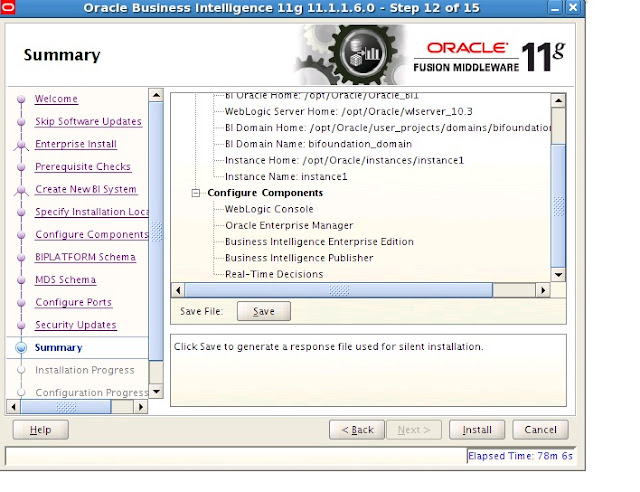
9. Summary of all of the setting we have done so far:

10. Upon clicking 'Install', the process kicks off:


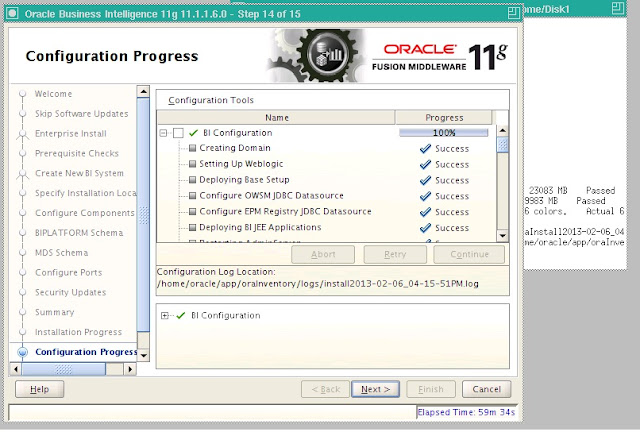
11. Final Completion:


This is the whole process of installing OBIEE 11g. Upon successful installation, the weblogic server, node manager and BI Components are automatically in running state. You can immediately log in (username/password will be what you created in step 3) to your 11g front end interface. By default, what you will get the sample demo dashboards and reports until you start creating your own or start upgrading your 10g stuffs.

Next time, we will talk about applying patches for this version of 11g.

Stay tuned


Monday, February 11, 2013

Install OBIEE 11G on Linux part 2 --- Installing RCU

From the previous entry, we have covered all of the prerequisites and getting the system fully ready, the only thing missing from there was pressing the button. So now, let's press that button and kick off RCU.

Because the 11G architecture is different, before the actual installation of 11G, repository and schema need to be created and by referenced later during the 11G installation, therefore this step must be done before 11G installation.

1. First page of the RCU

2. After clicking 'Next':


3. Next page is to check Prerequisites as well as entering the SYSDBA account credentials that is required to connect to the Database (system/manager in my case). Please read the previous article to understand what the requirements. Without selecting SYSDBA as role, the installation will fail later. If this machine doesn't have the DB, then the same RCU needs to be run on that machine as well.

4. Prerequisites met:


5. Create passwords for the schema we are about to create here. This information will be used later during 11g installation:


6. Map table space;


7. Summary of what has happened so far:


8. Creation process completion


That is it. Now we are ready to install OBIEE 11G

Stay tuned for the next entry

Saturday, February 9, 2013

Install OBIEE 11G on Linux part 1

Hello

Today I want to talk about the detail process that I went through to install OBIEE 11G and setting up the entire OBIEE development environment. In my case, I was given a Linux machine and told that I was free to do anything with it as long as I install OBIEE 11G there and use it as development environment.

Doing it from scratch forced me to evaluate everything about the environment, so let me start by going over the prerequisites that my machine needs to have before doing the installation.

1. Depending on the OS versions, OBIEE might require certain library files. The missing files will be informed during the initial environment check when installing OBIEE. Moreover, OBIEE 11G needs to connect to the Database. In my case, we are using Oracle DB. So 2 scenarios are presented:

A: If installing 11g on the same machine where Oracle DB is installed, then it the DB and Oracle DB Client tools should already be there.

B: If installing 11g on a different machine and intend to connect remotely to the DB Machine, then Oracle DB Client is needed. Also, RCU needs to be ran on that machine as well because chances are, the sysdba user of that DB Machine is not accessible directly from this machine.

If using other DB, please check the requirements

2.  Add the following lines into /etc/security/limits.conf
*           hard                nofile              10240
*           soft                  nofile              10240


Test it as root user to verify ulimit setting

3. Download and move all of the OBIEE 11G files as well as RCU zip files to the Linux machine and unzip them:

Unzipping RCU files:


Unzipping OBIEE 11G files:

4. The RCU and the 11G installation are done through a windows UI, therefore the displaying of it in Linux or Unix environment needs to be set up by configuring the $Display environment variable. In my case, things are done by accessing Linux through VNCviewer and the display is set at 4:


Now ready to run RCU:


Continuing on to the next entry

Stay tuned!

Tuesday, February 5, 2013

Starting OBIEE 11G Service Components --- For Server bi_server1, Node Manager Associated with Machine not reachable

Hello again.

So I have installed OBIEE 11G, now what do I do to bring everything up so I can log in and see the 11G dashboards?

I am assuming you have the basic understand of OBIEE 11G architecture, or at least you know the relationship between weblogic and BI Components. So from there, the first time we do is to start the weblogic services.

Take my Linux environment for instance, you navigate to the following directory and run the weblogic start script:

/MWhome/user_projects/domains/bifoundation_domain/bin/startWebLogic.sh

Having done that, you should be able to log in to the UI of Console and EM.

Once I am in, I am trying to start the bi_server1, yet I run into the following error:

For Server bi_server1, Node Manager Associated with Machine not reachable


This tells me that I need to make sure the node manager is up and running.  This time, I navigate to the following the directory where node manager script is located:


MWhome/wlserver_10.3/server/bin/startNodeManager.sh

Upon running the script, I encounter the following error:


This indicates that I have to see whether the port number that Node Manager is configured is used or not. By default, the port number is 5556, however in our environment, it was 9556. So do the following:


Here it shows that for 9556, there is 4642 that is running, so we need to kill it:


After doing that, we need to run the SetWLSenv script, this will set the environment for weblogic, after that, we re-run the node manager start up script:


After that, we resume the bi_server1 and now it is successful:


Next, we move on to the EM interfaces and start the BI components. But before doing that, we need to start the OPMN by going to the following directory:

/oracle/product/middleware/instances/instance1/bin/opmnctl

And run the opmnctl script:


After that, start all of the BI Components in EM UI:


Thanks

Until next time.

Sunday, February 3, 2013

Summary: How to create BI platform that globalizes reports across all time zones

So after all of the trials and errors, understanding of the complexity and trickiness of globalizing (or internationalizing) reports across all time zones, I am going to summarize all of the steps in this entry.

First of all, let me go over the requirements and issues once again when it comes to this type of reports. In the nutshell, the requirement is simply to answer the question of what happen to my business at this particular time in my local time zone.

In other words, my stock is trading in New York and I want to know what is the stock price at 3pm California time. Or, my account is in Europe, I want to know all of the transactions at 2am Tokyo time. Even, what is the average trade volume of this stock from 10am to 1pm my local time in Berlin for the stock being traded in London. For the particular project that this requirement is applied to, I want to know all of the signal drops in my telecom network from 8am to 9am Greenwich mean time, or show me all of the interfaces that exceeds the throughput from 8am to 9am my local time.

Traditionally, the data are typically managed at the ETL layer and the data source feeds data with their local time zone.

Below is the approach I used:


1. Enable OBIEE's time zone setting by editing the instanceconfig.xml file
Detail can be found in this article


2: Store all of the data at standard UTC time in the DB. Then create a DB table that stores all of the time zones and offset hours there for OBIEE to report against. The offset value is then available for used as presentation variable from OBIEE dashboard. These steps can be seen in this article

3. Apply the conversion using the offset values obtained from step 2 to the date and timestamp fields of the report. Depending on how the logic is, your formula maybe different. This article explains how this is applied in my case.


So, that's all there is to it.

Now one shortcoming of this approach is that the day light saving conversion will have to be done manually by updating the external table's offset column. Potentially, a function or SP maybe used to automate the process. However, day light saving is a very complicated thing by its nature, different country have different laws on when it is changed. There is no way around it. This is something we will just have to get used to it.

Thanks,

Until next time.
Related Posts Plugin for WordPress, Blogger...