Disclaimer

All of the topics discussed here in this blog comes from my real life encounters. They serve as references for future research. All of the data, contents and information presented in my entries have been altered and edited to protect the confidentiality and privacy of the clients.

Various scenarios of designing RPD and data modeling

Find the easiest and most straightforward way of designing RPD and data models that are dynamic and robust

Countless examples of dashboard and report design cases

Making the dashboard truly interactive

The concept of Business Intelligence

The most important concept ever need to understand to implement any successful OBIEE projects

Making it easy for beginners and business users

The perfect place for beginners to learn and get educated with Oracle Business Intelligence

Showing posts with label Time Zone Reporting. Show all posts

Sunday, February 3, 2013

Summary: How to create BI platform that globalizes reports across all time zones

So after all of the trials and errors, understanding of the complexity and trickiness of globalizing (or internationalizing) reports across all time zones, I am going to summarize all of the steps in this entry.

First of all, let me go over the requirements and issues once again when it comes to this type of reports. In the nutshell, the requirement is simply to answer the question of what happen to my business at this particular time in my local time zone.

In other words, my stock is trading in New York and I want to know what is the stock price at 3pm California time. Or, my account is in Europe, I want to know all of the transactions at 2am Tokyo time. Even, what is the average trade volume of this stock from 10am to 1pm my local time in Berlin for the stock being traded in London. For the particular project that this requirement is applied to, I want to know all of the signal drops in my telecom network from 8am to 9am Greenwich mean time, or show me all of the interfaces that exceeds the throughput from 8am to 9am my local time.

Traditionally, the data are typically managed at the ETL layer and the data source feeds data with their local time zone.

Below is the approach I used:


1. Enable OBIEE's time zone setting by editing the instanceconfig.xml file
Detail can be found in this article


2: Store all of the data at standard UTC time in the DB. Then create a DB table that stores all of the time zones and offset hours there for OBIEE to report against. The offset value is then available for used as presentation variable from OBIEE dashboard. These steps can be seen in this article

3. Apply the conversion using the offset values obtained from step 2 to the date and timestamp fields of the report. Depending on how the logic is, your formula maybe different. This article explains how this is applied in my case.


So, that's all there is to it.

Now one shortcoming of this approach is that the day light saving conversion will have to be done manually by updating the external table's offset column. Potentially, a function or SP maybe used to automate the process. However, day light saving is a very complicated thing by its nature, different country have different laws on when it is changed. There is no way around it. This is something we will just have to get used to it.

Thanks,

Until next time.

Thursday, January 17, 2013

HOW TO BUILD A REPORT THAT ACCURATELY REFLECTS DATA CORRESPONDING TO DIFFERENT LOCAL TIMES FROM DIFFERENT TIME ZONE --PART 2

Previously, I have stated the issue when it comes to reporting based on different time zone hours, now continue on what the solution I have found.

As previously mentioned "the conversion is giving the correct hour number from 0 to 23. However, when the result exceeds 23 (in the case of +8 time zone when adding 16 (UTC hour) with 8), it becomes 24 and it keeps going on with 8 more numbers by increment of 1; when the result is less than 0 (In the case of -8 time zone when adding 0 (UTC hour) with -8), it becomes -8 and it keeps going on with 8 more numbers by increment of 1."

So I have to add some conditions to take care of both cases when the number exceeds 23 and when it is less than 0.

As an experiment, I created one more column named 'hour conversion' with the following formula:

case when (hour(Date."Hour Date") + @{Offset}) < 0 then hour(TIMESTAMPADD(SQL_TSI_Hour, @{Offset}, Date."Hour Date" )) when (hour(Date."Hour Date") + @{Offset}) > 23 then hour(TIMESTAMPADD(SQL_TSI_Hour, @{Offset}, Date."Hour Date" )) else (hour(Date."Hour Date") + @{Offset}) end

The idea is that, when the converted time stamp is less than 0 and greater than 23, we want to display the converted time stamps in hour number, else, just the time stamp itself as it is in terms of hour number:


Now after done that, I have to create some filters on the report. The filter is going to base on the content of the formula defined in this column.

So, create a set of filter on date and "hour conversion" column:


1. cast(Timestampadd(SQL_TSI_HOUR, @{(Offset}, Date, "Hour Date") as date) is between date from the prompt ---- Here, I first convert the time stamp with Offset value, then convert it to date. Then use this to filter against the date values that user pass through the prompt.

2. case when (hour(Date."Hour Date") + @{Offset}) < 0 then hour(TIMESTAMPADD(SQL_TSI_Hour, @{Offset}, Date."Hour Date" )) when (hour(Date."Hour Date") + @{Offset}) > 23 then hour(TIMESTAMPADD(SQL_TSI_Hour, @{Offset}, Date."Hour Date" )) else (hour(Date."Hour Date") + @{Offset}) end is between the hours from the prompt --------- Here, basically whatever value that's converted by the formula in "Hour Conversion" column that I created will be compared against the hour number that user passes through the prompt:


Now, let's test it out:

This time, the time zone is UTC + 8 (Offset = 8).

As you can see, Hour Conversion field is showing the hour numbers matching Time Zone Local Time, the Hour Day Date column on the far right is matching the date as well


It works just as well with UTC -8 Time Zone


Now, let's change the filter hour to 1 to 3 and test again:

It is correct:

Remember the incorrect report from part 1 of this series? Now, let's compare that report with the new one and see the difference:


So, now I can confidently say that my report is going to give you the correct data at your local time based on whatever hourly criteria you want.

Thanks

Until next time

Tuesday, January 8, 2013

How to build a report that accurately reflects data corresponding to different local times from different time zone --Part 1

Previously,  I have concluded my approach to implement the reports that will intelligently retrieve data corresponds to different time zone even if the displayed time stamp never changes. In other words, when any user changes its account setting to a different time zone, the report should automatically displays the data accordingly even if the values displayed on the dashboard prompt is still "Jan 01, 2001" for instance. The meaning of the report, the displayed time changes completely when the account setting changes. This wasn't easy but it was proven possible.

However, there was an issue with the report I created if you really test it deeply. Let me demonstrate here:


We have the following report that shows date, hour, hour number and the throughput. Each throughput has a corresponding time which is from the Date Dim table. It is a simple report and the time zone setting is default. So nothing fancy here.


Now, let's change the time zone to GMT + 8 Perth time and rerun the report:

As you can see below, the displayed time zone local time has changed to reflect Perth time while hour, hour date and hour number are still reflecting the default time. This issue has been mentioned previously. This is the behavior of OBIEE, it only changes the display of the time stamp based on locale time zone, it doesn't really do the actual time stamp conversion. Therefore, when you convert time stamp to hour number, it is converting the time stamp from "Hour Date" column, rather than "Hour Date Time Zone Local Time" column. Hence the confusion.


So let's change the hour filter to 10 to 12, the report comes back with correct data. How so?

Well, the user wants to know the throughput of 10am to 12pm on Jan 6th 2013 Perth time, and the report is showing these 3 throughput records of 2am to 4am, Jan 06 2013 UTC time. That's why it is good.


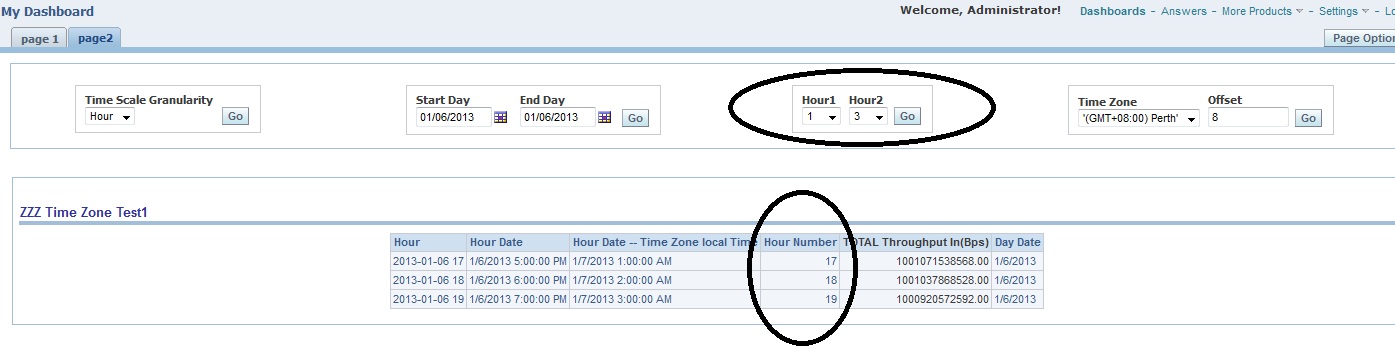
Now let's change the filter to between 1 to 3 and rerun it.

Then we are having problem. Because now, the user wants to see the throughput of 1am to 3am Jan 6th 2013 Perth Time, yet the report is displaying the data 5pm to 7pm Jan 6th 2013 UTC. This is wrong. It should've displayed the throughput of around 5pm to 7pm Jan 5th 2013 (the day before).


Now we know there is an issue, but how are we going about it?

Before doing anything, I need to understand how is the conversion taking place and how am I filtering the report. So I then created some dummy columns in the same report with different expression to understand what kind of behavior it is doing for this particular time zone (when Offset value = 8).

Hour date: This is nothing but hour date - 8. This will return the time stamp of the default UTC because the display of hour date is going to be plus 8.

Hour number: This column will give the hour number according to UTC time stamp

Conversation Hour Number: Here I am doing a time stamp plus 16 hours. This will give me the hour number in accordance with the Displayed Perth Time Stamp. It took me a while to figure out it is 8*2. If the offset is 4, then it should be 4*5 to get you the right hour number that matches the display.

Run the report and see what its doing:


So we see the problem with this column. Since the filter on date is Jan 6th 2013, we are getting all of the records of Jan 6th 2013 of UTC time. Therefore, the displayed local time in this case is missing 0 to 7 on the same date, and its adding 0 to 7 of the next date. This is expected behavior.

With the same logic, if I change the local to GMT -8, or Pacific Time in U.S.A, this behavior should occur the same way in reverse as shown:


My first approach is to find a way to convert this hour so it will match the displayed local time stamp both hourly and daily. Without thinking too much, I added "hour(Date, "Hour Date") +@{Offset}" to the expression and named the new column "Hour number with offset" and rerun the report for both +8 and -8 time zone:


Perth Time, +8 to UTC:

Pacific Time, -8 to UTC:


See what's going on? Looking at both cases, the conversion is giving the correct hour number from 0 to 23. However, when the result exceeds 23 (in the case of +8 time zone when adding 16 (UTC hour) with 8), it becomes 24 and it keeps going on with 8 more numbers by increment of 1; when the result is less than 0 (In the case of -8 time zone when adding 0 (UTC hour) with -8), it becomes -8 and it keeps going on with 8 more numbers by increment of 1.

I am close, but not quite there yet. I have realized that I need to do some programming and address the case of less than 0 and greater than 23. Luckily, I have found a good solution and it is working perfect. I will continue here.

Stay tune!

Thursday, October 11, 2012

How to report data dynamically based on user's personal time zone setting -- Part 3


So from the last time I took a step further to solve the issue of reporting based on time zone, although it wasn't 100% correct, at least it opens up a few options. The conclusion there was that we need to find a way to dynamically choose the time zone offset value and use it for our time conversation. Where I was stuck was at the daylight saving changes that happens from all over the world.

Therefore, I have decided to introduce a time zone table that stores all of the time zone and the corresponding offset value. The table structure is like below, and I have manually added 2 rows, both are for GMT -6 time zone. However, one of the time zone is currently having DST in effect while the other doesn't:


Then, bring this table into OBIEE's model:


Now, let's create some dashboard prompts using these 2 columns:


Here on Time Zone prompt, I am applying the following expression to show the contend:

SELECT case when "Time Zone"."Time Zone" = '@{session.timeZone}' then "Time Zone"."Time Zone" end FROM "Capacity Management" where case when "Time Zone"."Time Zone" = '@{session.timeZone}' then "Time Zone"."Time Zone" end is not null

The previously discovered session variable 'timeZone' is truly handy here. So the idea is that, when the time zone column equals the locale name that's generated by user session, it will return that exact locale name which is also stored in the time zone table. The where clause eliminates all the other records which will be null in this case. Also, the default value of this prompt will be the session variable.

Now create the second prompt on offset value:


Now the second prompt is also coming from the same time zone table, this should record the offset value that matches the locale name in the table. To do some, in the 'SQL result' setting, I entered the following expression:

SELECT "Time Zone"."Offset Value" FROM "Time Zone" where  "Time Zone"."Time Zone" = '@{session.timeZone}'

Also, I have set a presentation variable which will pass this value into any filters or tables that need conversions. I call this variable 'Offset'.

So let's test this prompt on the dashboard with the first locale setting, which is central America time:


The result looks great. These fields are automatically populated.

Now change the locale setting to central time U.S & Canada:


Then refresh the log in again and we see it automatically updates:


Now, the rest is pretty straightforward.  Remember in my previous post where I was forced to use the following expression to convert my time stamp in my timestampadd function? 

Timestampadd(sql_tsi_day, cast(Substring(case when '@{session.timeZone}' = '(GMT) Casablanca, Monrovia' then '(GMT+00:00) Casablanca, Monrovia' when '@{session.timeZone}' = '(GMT) Greenwhich Mean Time: Dublin, Edinburgh, Lisbon, London' then '(GMT+00:00) Greenwhich Mean Time: Dublin, Edinburgh, Lisbon, London' when '@{session.timeZone}' = '' then '(GMT+00:00) Default' else '@{session.timeZone}' end From 5 for 3) as int)/24 , Date."Hour Date"

Now I can simply replace all these codes to the following:

Timestampadd(sql_tsi_day, @{offset}/24 , Date."Hour Date". 

This will take care of all scenarios..

From OBIEE's point of view, we are all done. So of course, we have to maintain our time zone table and we have to figure out what offset value is for each time zone and when is their DST start and end date of the year. I went to wikipedia and it was pretty eye opening and fun to learn all these stuffs. 

So then, I will load the entire table with all of the time zone name and offset values. Some script will have to be called on specific day to update the offset value for DST. Although this may sound complicated, it is not in real life. Think about this, most of the time we will be supporting business in Asia, Europe, North America, South America or Africa.. A lot of those time zones never observe or no longer observe DST. The main countries that do are in Europe or North America, and most of their DST period are from March to Oct or April to Nov. Then we have a few exceptions in Australia, even then, there aren't that many to deal with. Most of the time, we won't cover them all unless your BI Platform is so big that it truly need to cover users from Marshall islands, Baghdad or New Guinea, which I highly doubt. I would say, this approach takes care of most cases and should be a good solution..

Thanks, until next time 


Tuesday, October 9, 2012

How to report data dynamically based on user's personal time zone setting -- Part 2


The previous entry has concluded the problem with implementing reports based on different time zone, this time we will proceed with the possible workaround.

One thing we have realized is that, the time stamp being displayed on the report is changing according to the user locale, this means it occurs per user session. We definitely should take advantage of such feature, now we have to figure out a way to capture the time zone offset value for each user locale setting and use that to do our data conversion.

Luckily, OBIEE provides a list of pre-determined system variables. A lot of you may already be familiar with the likes of 'current_date', which returns the current time stamp. Here are a few other variables familiarly for the time zone locales:


So, let's try using 'timeZone' variable and see what I can get out of it. The proper syntax for calling this variable is '@{session.timeZone}', which can be used in column formula, filter values and prompts. Now I am just creating a new column in the report with this variable, it should return the time zone name in text format, the values will be exactly what you choose in your locale drop down list.


My idea is that, since most of the locale names are in text format and it tells you the offset values such as '(GMT-07:00) Arizona', I will then just take this value and substring it so it will only have the part after '-0' and be 3 digit long, and then convert the result into integer. I then get my offset values. The good thing about this is that, the value changes dynamically based on user's locale setting. I save myself from having to mess with session authentication. The only though, is that there are 2 locales names: '(GMT) Casablanca, Monrovia' and '(GMT) Greenwhich Mean Time: Dublin, Edinburgh, Lisbon, London' do not have any numeric implications. In these 2 cases, I will just change the text 'GMT' to 'GMT +00:00' with a case statement.

So putting all these thoughts together into a formula, I then create a new column that returns the offset value with the following statement:

cast(Substring(case when '@{session.timeZone}' = '(GMT) Casablanca, Monrovia' then '(GMT+00:00) Casablanca, Monrovia' when '@{session.timeZone}' = '(GMT) Greenwhich Mean Time: Dublin, Edinburgh, Lisbon, London' then '(GMT+00:00) Greenwhich Mean Time: Dublin, Edinburgh, Lisbon, London' when '@{session.timeZone}' = '' then '(GMT+00:00) Default' else '@{session.timeZone}' end From 5 for 3) as int)


Now the latter part '@{session.timeZone}' = '' then '(GMT+00:00) Default' was simply my attempt trying to take into consideration when user locale is set 'Default'. This however, has been proven to not work. But for now, leave it as it is.

Moving on, let's set the locale to be Arizona time:


And run the report:


As you can see, now the offset values and time zone columns are both reflecting what the time zone locale should be..In my case, the offset value is -7.

So I need to apply this offset value into my date and hour filters in order to take Arizona time into consideration. In my case, it is to edit the filter column formula where the original number divided by 24 would be replaced by the offset value. From the below screenshot, you will see a big cast statement divided by 24 within the timestampadd function. The exact reason of such set up can be read here if you care, but I digress. 


Like I said from the previous post, this is a workaround, which doesn't quiet get it at 100%. One of the main issue of this solution is that it doesn't take daylight saving changes into consideration. This can be a big problem in the long run as daylight saving is one of the most complex thing to tackle. Nevertheless, having timeZone session variable is really handy, it opens more possibilities. Now with the tools we have, I am exploring into other solutions that might be able to deal with this requirement more efficiently. 

I think I have found one! My first round of testing looks very promising.


Stay tuned!


Until next time

Saturday, September 29, 2012

How to report data dynamically based on user's personal time zone setting -- Part 1

Hello again.

Ever since the introduction of global time zone concept, the information that business want to see has a whole different meanings. The transaction with certain amount took place at certain time means the world of difference if considering the time zone in where it occurred. Therefore, viewing data at user's preferred time has always been requirements. One of the trivia situation where time zone matters a lot is when it comes to stock markets. An user in California looks at his stock at 10:00 am in front of his office, he should know that whatever he sees happen at 1: 00 PM  NY time.

Therefore, the question comes when reporting in OBIEE that, at what specific time did this transaction occur? If an user is based out of Japan, he is likely to change his locale settings to Tokyo time and therefore, the transaction that he cares about show display in Tokyo time even if the transaction itself happened elsewhere and recorded at a different time zone. So how do we implement this kind of reporting capability in OBIEE?

Without thinking too much, we intuitively think we should add time zone information into the user table (If external authentication is used) and create session variables to capture the time zone and add the value to the conversation. At a high level, this may work although I haven't tried, but the issue is that the users can change their personal locale preference whenever they want and they should expect different results. Their changing locale doesn't trigger the same update at the DB level, therefore, it won't reflect the update. Therefore, this is not ideal.

The most simple and straight-forward way of changing the display of date & time in reports is by modifying the instanceconfig.xml file by adding the following entry:

- 0


Having done that, it will show you the difference of displaying date and time base on user's locale preference. We can see from below that we have a report with default locale setting and data being displayed is at GMT time (the time where OBIEE server machine is):


Now, change the time zone to Bangkok time, which is GMT + 7:


Now refresh the dashboard and the displaying date and time changes. The difference is perfectly 7 hours forward:


So now the job is done right? That's what we would think and I wish it was that easy so I didn't have to put "Part1" in the title of this article. You see, although the display changes perfectly correct, there is no actual date and time conversion happening at the query level. In other words, the query that is fired to the DB will still pick up date at default time zone, its just when it displays at the presentation, it changes accordingly.

So why is this a problem? Let me illustrate with the following example:

Let's say we have the following reports displayed with UTC time and users want to look at data by selecting the date and the hours where transaction is recorded. So let's add hour numbers into the report:


So far, the hours agree with the time stamp column, this assures that the correct hours are being filtered against. Now let's change the locale back to GMT + 7 Bangkok time and refresh the dashboard:


As you can see, now the hours are still showing what was in the previous time zone, but the displayed time stamp has been changed into Bangkok time. You see the problem?

Let's say the Bangkok user looks at this report and see the transactions occurring at hours between 2 PM to 3 PM his local time, and then he wants to look at all of the records between 2PM and 3PM, he will then change the filter value to 'between' 2 and 3. Then he is going to get the wrong record. Because without actual data level conversation, in the above example, if the user want to see the data at 2pm Bangkok time, he will have to enter 7 in the filter instead of 3. How would he know?

Therefore, something more needs to be done in order to create a truly internationalized dashboard.

I have figured out the way to do it, although it is not working 100% perfect, it is definitely very good.

I will continue on the solutions I use in the next post.

Stay tuned!


Related Posts Plugin for WordPress, Blogger...