Disclaimer

All of the topics discussed here in this blog comes from my real life encounters. They serve as references for future research. All of the data, contents and information presented in my entries have been altered and edited to protect the confidentiality and privacy of the clients.

Various scenarios of designing RPD and data modeling

Find the easiest and most straightforward way of designing RPD and data models that are dynamic and robust

Countless examples of dashboard and report design cases

Making the dashboard truly interactive

The concept of Business Intelligence

The most important concept ever need to understand to implement any successful OBIEE projects

Making it easy for beginners and business users

The perfect place for beginners to learn and get educated with Oracle Business Intelligence

Sunday, October 2, 2011

OBIEE 11G: Basic Repository Navigation Compared to 10G


Hello

Just got 11G installed on my PC, it's time to check it out.

What I have is 11.1.1.5, which is the second version of the 11G. I wasn't a big fun of 11G when it first came out, partly because I was able to work around most of the issues using 10G, I simply wanted to wait for some time before going into 11G. It gave me a lot of time to hear feedback from other users who are already using 11G.

Now looks like 11G is going to be the trend and Oracle has released the second versions of it, therefore I decided to check it out. My current project uses OBIEE 11G with the BI Apps, since we are still focusing on the installation and infrastructure aspect of the project, I managed to get 11G's admin tool installed on my local PC while the Weblogic part is still pending. Therefore, I am just going to post a few key new features that I noticed navigating the Admin Tool.

If you are already an experienced 11G user, this article is going to be too basic for you. However, if you have only read about 11G's new feature but hasn't had hands-on experience, this article maybe interesting for you.

First of all, the architecture of OBIEE 11G is very different from 10G due to the introduction of Weblogic. We no longer have BI service, BI Presentation Service, OC4J, BI Scheduler Service under the window's service upon installation, these services that we used so frequently in 10G are either replaced or moved. There are a lot of helpful information out there that talks about the basic architecture of 11G. Since I haven't fully set up 11G on our platform, I have nothing to show in this article. (I am a big fun of showing screenshots) Therefore, let's just focus on the Admin Tool itself.

The good news is, the Admin Tool still works the same way as that of 10G. After all, it is still called 'OBIEE' right? It would make sense for Oracle to keep it the same or call it 'new product'. Anyhow, this is what it looks like upon logging in:

See, not bad at all! We still work through the 3 layers!


The following is the new join diagram with a few new buttons on the tool bar, pretty cool! It still work very much the same way as in 10G, but the graph is better, I have to admit that I like 11G better in this:


What we have below is the Logical Dimension view in BMM layer. As you can see, just as Oracle mentioned that they are going to take care of the ragged and Skipped level hierarchy that occurs every so often in multi-dimensional Data modeling world, there you have it. In the Logical Dimension view, it has the often of checking what type of hierarchy this is:


Here is the new expression builder windows:

Notice that 11G has introduced a few new functions that were absent in 11G.

Lookup Functions--- Dense Lookup and Sparse Lookup. The idea of lookup function is similar to the Lookup transformation used in Informatica. It looks up a value from a different table and then make decisions based on that. So in OBIEE11G, the way it works is that an established star schema or snow-flak schema can use lookup function for it's dimension table to obtain extra information by looking up values from a separated look up table without having to join that table into the schema. It is a good way of keeping the data model clean and simple while being able to reference data from outside of the schema. I will wait until I set up the Weblogic for a more detail demo on how it works.

Evaluate functions----Evaluate/Evaluate--Predicate/Evaluate--Aggr/Evaluate--Analytic. Well, we have Evaluate function in 10G, which is a way to let us execute database functions that are not included in OBIEE. I guess it is still the case here although I haven't researched what each specific evaluate function does. Nevertheless, it is cool that 11G has added extra evaluate functions.

Time Dimension ---- Ago/Todate/PeriodRolling. This is equivalent to the time series function in 10G except that it now has PeriodRolling function to handle the needs of 'rolling X period' reporting. I am sure I will no longer need to do the kind of workaround in 10G anymore by using this function. But again, can't demo it until I get 11G fully installed.

Last but not least is the security part, which is now called Identity manager and the previously known 'User group' has been replaced by 'Application Role'.


Oh, I forgot to include the ability of creating hierarchy at presentation layer as a new feature of 11G. However, I think it's better that I wait until I am able to provide a complete demo in my environment before getting too detail on it. Meanwhile, go ahead and read about presentation hierarchy, it is quite interesting.

Anyways, this is it for now. I will add more to it later but I think this is a good start for those experienced 10G or prior users to transition into using 11Gs..

Thanks

Until next time!


Tuesday, September 27, 2011

Error connecting DB from DAC ORA-12516: TNS:listener could not find available handler with matching protocol stack


I ran into this error a lot recently when running DAC execution plan, which takes some time to complete. Here is the error details that you can get from Informatica session log when the sessions failed:


RR_4036 Error connecting to database [Database driver error...Function Name : Logon

ORA-12516: TNS:listener could not find available handler with matching protocol stack


Database driver error...
Function Name : Connect

Database Error: Failed to connect to database using user [etldw] and connection string [BIQATST].].

Upon some researching and some help from a great colleague of mine, we decided to change the number of session connections to the Database. This is likely due to the number of connections at Database level not having enough so some of the connection requests get hung.

It is recommended to have about 500 sessions in the DB.

Upon changing the setting and re-running the execution plan, my error messages have gone away.

Thank you


Wednesday, September 21, 2011

DAC: Fail to create Index during execution plan run


Hello again

Here is something that a beginner may run into every so often when they use DAC to run informatica workflow, which is when the DAC execution plan runs fine except it fails to create table Index after the load. Or it could be shown as the following scenario:


The execution plan is completed with several failures of its tasks. We look at the detail of the task and find out that it fails at the last step of creating table Index:


We found out from the error log that it is complaining about a table space 'USERS' during Index Creation attemp:


As far as when 'USERS' got into this, I have no idea. Usually when we create table in a DB, we use Tablespace. I won't go into detail about what is tablespace and all that. In our case, we use a Tablespace called 'ETL_DW_INDX' for all of the index creation when we create these tables in the target DB. I am assuming that DAC is still looking for tablespace 'USERS' for all of its tasks during run time.

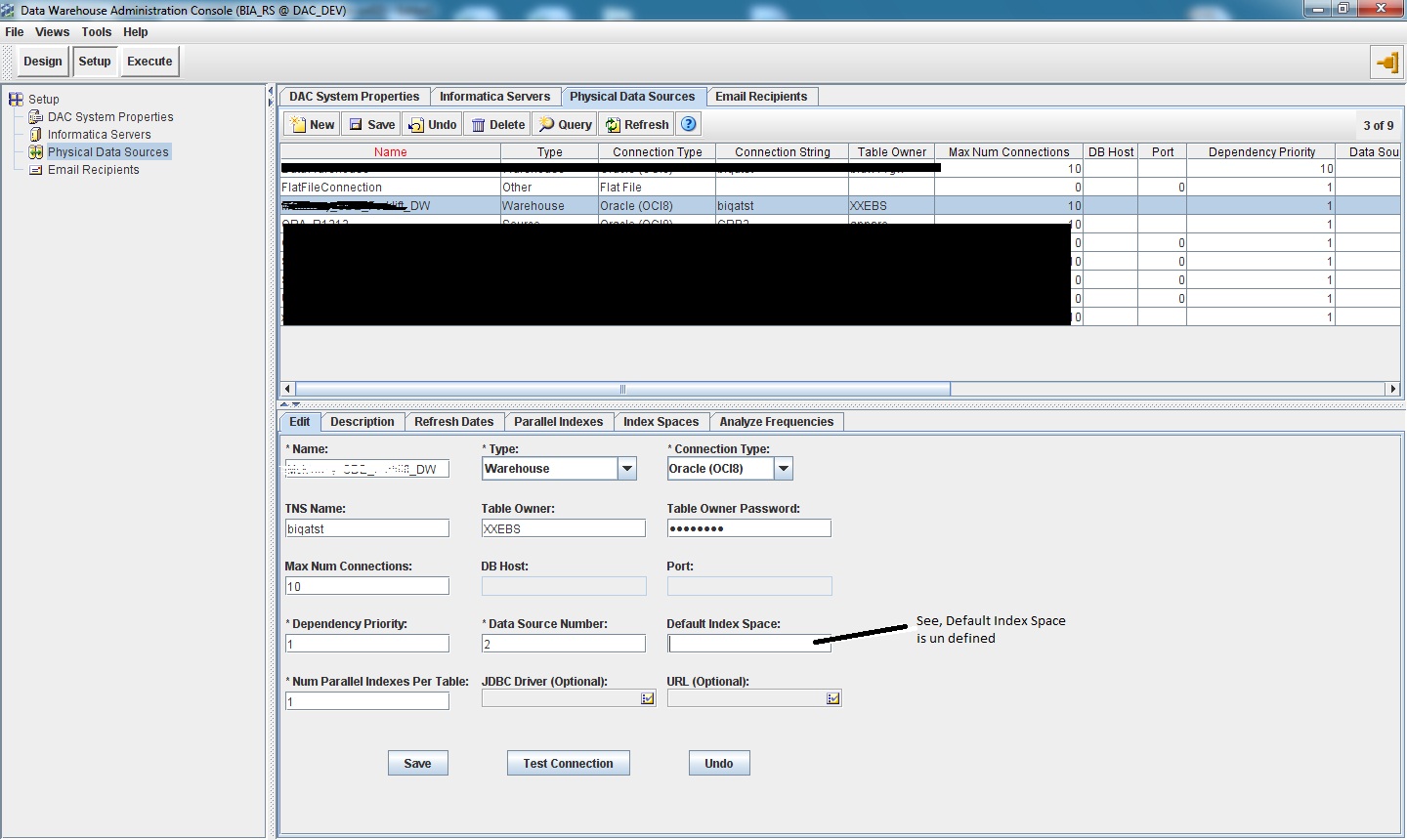
This leads our investigation of this issue to a new direction. Is there a place in DAC that specifies what Index Tablespace it is using for the given Database? Well, it turns out that is yes. It is defined at the physical data source under 'SET UP' tab, so let's go there!


As we can see, it is originally empty for the fleid 'Default Index Space'. This may explains why we see 'USERS' in the error log while we know we are creating Indexes in the Database using 'ETL_DW_INDX'. So, let's tell DAC to use 'ETL_DW_INDX':


After that, let's re-run the execution plan and see how it turns out!


It all succeeded!

So in summary, if we are using specific Index tablespace when creating Indexes in the DB, we need to tell DAC to use that tablespace by defining it in the specific Physical Data Source info. This information will be used by DAC to run create-index tasks during execution plan run.

Thanks

Until next time!
Tuesday, August 23, 2011

A practical intro guide to Oracle Data Admin Console (AKA DAC) Part 5 -- when Index is involved


I decided to add one more part to the previous series about basic working of DAC. I realized that I forgot to address the situation where table Index is involved in the test environment I set up for previous demonstration. It is absolutely worth addressing here but we WILL deal with tables that have indexes.

So let's start with the following error scenario:

We have task running with completion in DAC:

But this workflow is giving an error about Index:


As indicted in this session log in Informatica:


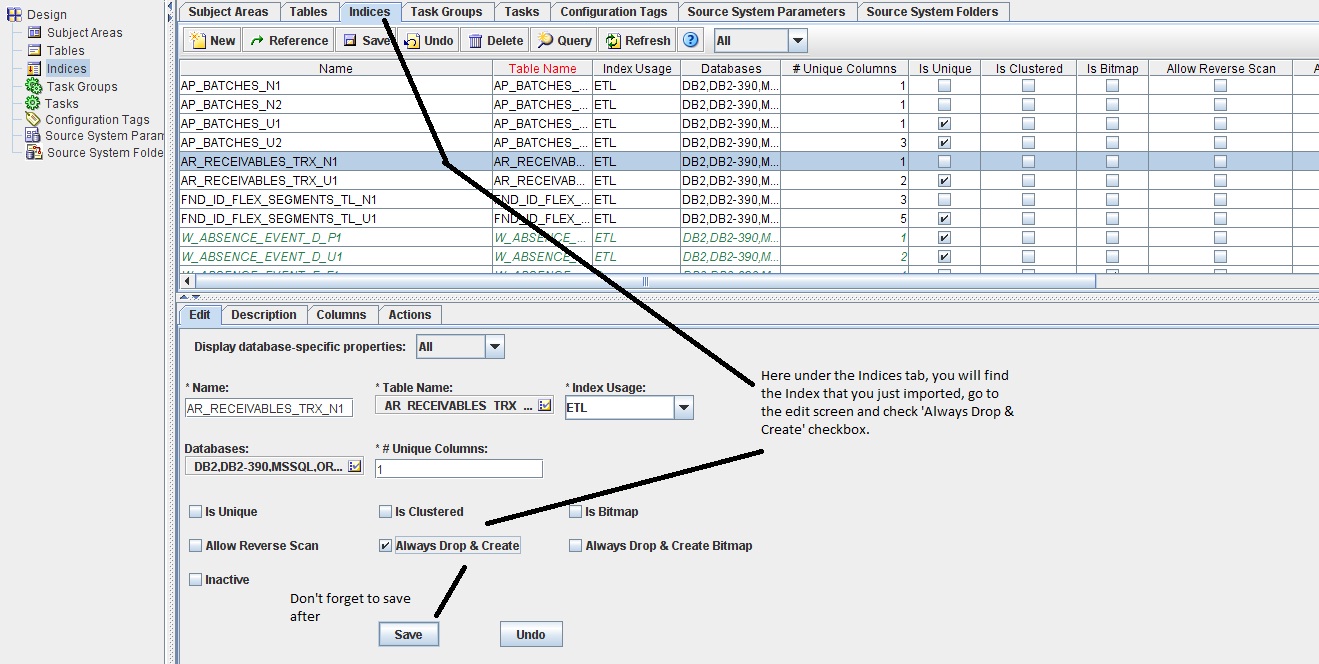
This means that the Indexes for the target table was not being able to drop during the ETL load, therefore the workflow is returning such error. Now in order to resolve this error, DAC needs to be able to drop those indexes and recreate them after ETL Load. So we start by importing Index into DAC for the target table that we went through in the previous series:


Import both Indexes for table: AR_RECEIVABLES_TRX_ALL:


Then go into each of the indexes that we just imported, we tell DAC to drop them before the ETL load:


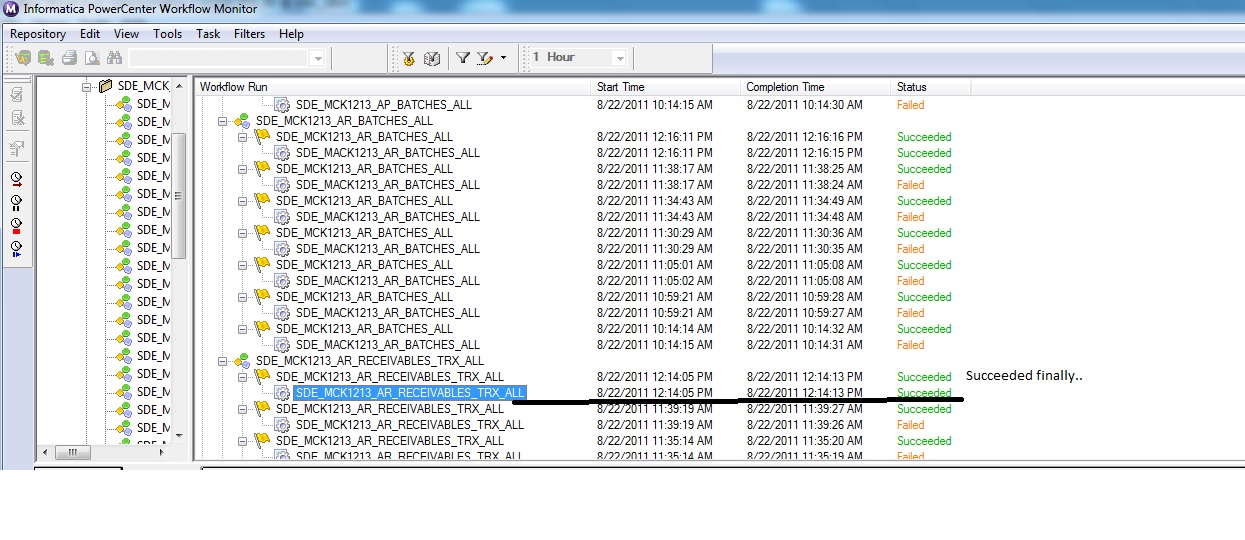
Now, let's re-run our execution plan and see what happen:


And success this time


If you want to know more about the functionality of DAC at a deeper level, please go through the DAC user guide, or contact me for any questions..

Thank you

Sunday, August 21, 2011

A practical intro guide to Oracle Data Admin Console (AKA DAC) Part 4

Based on everything we have done in Part 3 of the series, we have come to the final configurations, which is to build subject area and execution plan:

To creating subject area like mentioned in part 4:


The subject area name is MCK_Forklift_SDE and the task being added to it is
SDE_MCK1213_FND_LANGUAGES. I had added another task to this subject area previously, therefore we have 2 task entries here in this example. Don't be surprised.

Very important, after manually adding the tasks to this subject area, don't forget to assemble this subject in order for all the changes to be generated and saved:


Now once the subject area is created, let's move on to creating an execution plan. The execution plan is what will be scheduled or run manually on demand. One execution plan can have many subject areas, which can also have many tasks and task groups. In order words, one execution plan can have a bundle of tables, tasks, subject areas, parameters and other dependencies. It can get fairly complex depending on the requirement, but for the purpose of this article, let's stick to the simple and basic ones as shown below.


Remember the parameters defined in the session properties? The parameter file won't be generated until we generate parameters in the execution plan. The 'generate parameter' step is important. Make sure the value of each parameter matches the DB connection name in Informatica and the folder name value matches the name of the physical folder name created earlier:


After that is done, let's 'build' the execution plan:


This 'build' process will automatically add the tasks to the execution plan based on the subject area the execution plan has, the following window will pop up during the build process to indicate what will be 'built' to this execution plan:


After that is done as we can see from the below screenshot that the execution plan is built with 2 'ordered tasks' underneath. That's exactly what I expected. Now the next thing is to simply run this execution plan to see if it works:


Go to the 'current run' tab to see the status of this task:


We can also see the status from informatica's workflow monitor. Notice the timestamp from both applications matches, so we know the executed DAC tasks do show up correctly in Infa's workflow monitor:


As we can see, the tasks have been completed successful, we have just completed this flow of configuration. Now if you want, you can use the scheduling feature to schedule this execution plan to run at your desired time and frequency. I won't go there this time.

I hope this series help. I highly recommend to read the DAC guide again to reinforce the information we just went through.

Thanks

Until next time.
Related Posts Plugin for WordPress, Blogger...